Saturday, August 31, 2013

Function

// How to make Function

#include <stdio.h>
int add(int a, int b)
{
int c = a + b;
printf("Sum of a and b is %d\n",c);
}
int main()
{
int sum;
sum = add(5,4);
return 0;
}


//Video Tutorial for How to Declare Functions


Example 2:

#include <iostream>
using namespace std;
int add(int a, int b)
{
int c = a + b;
cout<<"Sum of a and b is "<<c<<"\n";
}
int main()
{
int sum;
sum = add(5,4);
return 0;
}


Friday, August 30, 2013

Function Override

Example 1:

// Function Override

#include <iostream>
using namespace std;

class arithmetic
{
  protected:
    int a, b, sum, sub, mul, div;
  public:
    void values (int x, int y)
      {
a=x, b=y;
      }
    virtual int operations ()
      {
sum= a + b;
cout<< "Addition of two numbers is "<< sum<<"\n";
      }
};

class Subtract: public arithmetic
{
  public:
    int operations ()
      {
sub= a - b;
cout<< "Difference of two numbers is "<<sub <<"\n";
      }
};

class Multiply: public arithmetic
{
  public:
    int operations ()
      {
mul = a * b;
cout<< "Product of two numbers is "<< mul<<"\n";
      }
};

class Divide: public arithmetic
{
  public:
    int operations ()
      {
div = a / b;
cout<< "Division of two numbers is "<< div<<"\n";
      }
};


int main()
{
    arithmetic *arith, p;
    Subtract subt;
    Multiply mult;
    Divide divd;

    arith=&p;
    arith->values(30,12);
    arith->operations();

    arith=&subt;
    arith->values(42,5);
    arith->operations();

    arith=&mult;
    arith->values(6,5);
    arith->operations();

    arith=&divd;
    arith->values(6,3);
    arith->operations();

return 0;
}

Thursday, August 29, 2013

Function Overload

//Function Overload

#include <iostream>
using namespace std;

int add(int a, int b, int c)
{
   return(a + b + c);
}

float add(float d, float e)
{
   return (d + e);
}

int main()
{
int add(int, int, int);
float add(float, float);
int a,b,c;
float d,e,sum;

   cout << "Enter three integers\n";
   cin >> a >> b >>c;
   sum = add(a, b, c);
   cout << "Sum of integers is " << sum << "\n";

   cout << "Enter two floating point numbers\n";
   cin >> d >> e;
   sum = add(d, e);
   cout << "Sum of floating point numbers is " << sum << "\n";
   return 0;
}


Wednesday, August 28, 2013

Call by Reference


//Call by Reference

#include<stdio.h>
int swap(int *a, int *b)
{
  int t;
  t=*a;
  *a=*b;
  *b=t;
}

int main()
{
  int i, j;

  printf("Enter the values ");
 scanf("%d%d",&i,&j);

  printf("Before swapping %d and  %d\n",i,j);

  swap(&i,&j);

  printf("After swapping %d and %d\n",i,j);

return 0;
}

Call by Value

//Call by Value

#include<stdio.h>
int cube(int x)
{
  x=x*x*x;
  return(x);
}
int main()
{
 int n=8;
 printf("Cube of %d is %d\n",n,cube(n));
return 0;
}


Tuesday, August 27, 2013

Friend Function

Example 1:

// Friend Function

#include <iostream>
using namespace std;
class frnd
{
private:
   int a,b;
public:
   void input()
    {
     cout<<"Enter the value of a and b\n";
     cin>>a>>b;
    }

  friend int compute(frnd f1);
};

int compute(frnd f1)
{
  int x=f1.a+f1.b;
  return x;
}

int main()
{
  frnd f;
  f.input();
  cout <<"The result is: "<< compute(f)<<"\n";
return 0;
}

Classes Objects

Example 1:

//Classes Objects

#include <iostream>
using namespace std;
class square
{
    int x;
    public:
    int area (int);
};
int square :: area (int a)
{
  x = a;
 return x*x;
}
int main()
{
  square sqr;

  cout << "Area of the square is " << sqr.area(4)<<"\n";
  return 0;
}

Monday, August 26, 2013

Do While Loop

Example 1:

//Do While Loop

#include<stdio.h>
int main()
{
int x=0;
int y=0;
do
{
y=y+x;
printf("%d\n",y);
x++;
}
while(x<=10);
return 0;
}


Example 2:

#include<iostream>
using namespace std;
int main()
{
int x=0;
int y=0;
do
{
y=y+x;
cout<<y<<"\n";
x++;
}
while(x<=10);
return 0;
}

While Loop

Example 1:

//While Loop

#include<stdio.h>
int main()
{
int x=0;
int y=0;
while(x<=10)
{
y=y+x;
printf("%d\n",y);
x++;
}
return 0;
}


//Video Tutorial


Example 2:

#include<iostream>
using namespace std;
int main()
{
int x=0;
int y=0;
while(x<=10)
{
y=y+x;
cout<<y<<"\n";
x++;
}
return 0;
}


Sunday, August 25, 2013

Switch Statement

Example 1:

// Switch Statement

#include <stdio.h>
int main()
{
int x, y;
printf("enter a number between 0 to 39: ");
scanf("%d",&y);
x=y/10;
switch(x)
{
case 0:
printf("you have entered the number in the range of 0 to 9\n");
break;
case 1:
printf("you have entered the number in the range of 10 to 19\n");
break;
case 2:
printf("you have entered number in the range of 20-29\n");
break;
case 3:
printf("you have entered number in the range of 30-39\n");
break;
default:
printf("number not in range \n");
}
return 0;
}


Example 2:

#include<iostream>
using namespace std; 
int main()
{
int x, y;
cout<<"Enter a number between 0 to 39: ";
cin>>y;
x=y/10;
switch(x) 
{
case 0: 
cout<<"you have entered the number in the range of 0 to 9\n";
break;
case 1: 
cout<<"you have entered the number in the range of 10 to 19\n";
break;
case 2:
cout<<"you have entered number in the range of 20-29\n";
break;
case 3:
cout<<"you have entered number in the range of 30-39\n";
break;
default:
cout<<"number not in range \n";
return 0;
}

Data Types

Data types in any of the language means that what are the various type of data the variables can have in that particular language. Information is stored in a computer memory with different data types. Whenever a variable is declared it becomes necessary to define data type that what will be the type of data that variable can hold.
Mainly there are two types of data types:
Primary Data Type : character, integer, floating point, boolean, double floating point, void, wide character
Additional Data Types : typedef, enumerated

Integer Data Types

Data Type (Keywords)DescriptionSizeTypical Range
intInteger.4 bytes-2147483648 to 2147483647
signed intSigned integer. Values may be negative, positive, or zero.4 bytes-2147483648 to 2147483647
unsigned intUnsigned integer. Values are always positive or zero. Never negative.4 bytes0 to 4294967295
shortShort integer.2 bytes-32768 to 32767
signed shortSigned short integer. Values may be negative, positive, or zero.2 bytes-32768 to 32767
unsigned shortUnsigned short integer. Values are always positive or zero. Never negative.2 bytes0 to 65535
longLong integer.4 bytes-2147483648 to 2147483647
signed longSigned long integer. Values may be negative, positive, or zero.4 bytes-2147483648 to 2147483647
unsigned longUnsigned long integer. Values are always positive or zero. Never negative.4 bytes0 to 4294967295

Floating-point Data Types

Data Type (Keywords)DescriptionSizeTypical Range
floatFloating point number. There is no fixed number of digits before or after the decimal point.4 bytes+/- 3.4e +/- 38 (~7 digits)
doubleDouble precision floating point number. More accurate compared to float.8 bytes+/- 1.7e +/- 308 (~15 digits)
long doubleLong double precision floating point number.8 bytes+/- 1.7e +/- 308 (~15 digits)

Character Data Types

Data Type (Keywords)DescriptionSizeTypical Range
charAny single character. It may include a letter, a digit, a punctuation mark, or a space.1 byte-128 to 127 or 0 to 255
signed charSigned character.1 byte-128 to 127
unsigned charUnsigned character.1 byte0 to 255
wchar_tWide character.2 or 4 bytes1 wide character

Boolean Data Type

Data Type (Keywords)DescriptionSizeTypical Range
boolBoolean value. It can only take one of two values: true or false.1 bytetrue or false
Note: Variables sizes might be different in your pc from those shown in the above table, depending on the compiler you are using.
Below example will produce correct size of various data type, on your computer.
Code:
1
2
3
4
5
6
7
8
9
10
11
12
13
14
#include <iostream>
using namespace std;

int main()
{
    cout << "Size of char is " << sizeof(char) << endl;
    cout << "Size of int is " << sizeof(int) << endl;
    cout << "Size of float is " << sizeof(float) << endl;
    cout << "Size of short int is " << sizeof(short int) << endl;
    cout << "Size of long int is " << sizeof(long int) << endl;
    cout << "Size of double is " << sizeof(double) << endl;
    cout << "Size of wchar_t is " << sizeof(wchar_t) << endl;
    return 0;

}
Output:
Size of char is 1
Size of int is 4
Size of float is 4
Size of short int is 2
Size of long int is 4
Size of double is 8
Size of wchar_t is 4

Enum Data Type

This is an user defined data type having finite set of enumeration constants. The keyword 'enum' is used to createenumerated data type.
Syntax:
enum enum-name {list of names}var-list;

Example Code:
1
enum mca(software, internet, seo);

Typedef

It is used to create new data type. But it is commonly used to change existing data type with another name.
Syntax:
typedef [data_type] synonym;
OR
typedef [data_type] new_data_type;

Nested If Statement

Example 1:

//Nested If Statement

#include <stdio.h>
int main()
{
int x, y;
printf("Enter a number between 0 to 39: ");
scanf("%d",&y);

if(y/10==0)
{
printf("you have entered the number in the range of 0 to 9\n");
}
else if(y/10==1)
{
printf("you have entered the number in the range of 10 to 19\n");
}
else if (y/10==2)
{
printf("you have entered number in the range of 20-29\n");
}
else if (y/10==3)
{
printf("you have entered number in the range of 30-39\n");
}
else
{
printf("The number not in range \n");
}
return 0;
}


//Video Tutorial


Example 2:

#include <iostream>
using namespace std;
int main()
{
int x, y;
cout<<"Enter a number between 0 to 39: ";
cin>>y;

if(y/10==0)
{
cout<<"you have entered the number in the range of 0 to 9\n";
}
else if(y/10==1)
{
cout<<"you have entered the number in the range of 10 to 19\n";
}
else if (y/10==2)
{
cout<<"you have entered number in the range of 20-29\n";
}
else if (y/10==3)
{
cout<<"you have entered number in the range of 30-39\n";
}
else
{
cout<<"number not in range \n";
}
return 0;
}


Integrated Development Environment

an Integrated Development Environment (IDE) contains all of the things you need to develop, compile, link, and debug your programs.

Introduction to Development

Introduction to Development
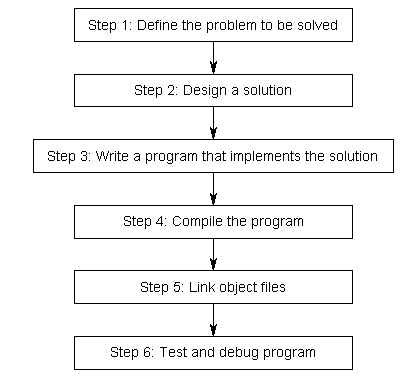
Before we can write and execute our first program, we need to understand in more detail how programs get developed. Here is a graphic outlining a simplistic approach:
The software development process


Step 1: Define the problem that you would like to solve.
This is the “what” step, where you figure out what you are going to solve. Coming up with the initial idea for what you would like to program can be the easiest step, or the hardest. But conceptually, it is the simplest. All you need is a an idea that can be well defined, and you’re ready for the next step.
Step 2: Determine how you are going to solve the problem.
This is the “how” step, where you determine how you are going to solve the problem you came up with in step 1. It is also the step that is most neglected in software development. The crux of the issue is that there are many ways to solve a problem — however, some of these solutions are good and some of them are bad. Too often, a programmer will get an idea, sit down, and immediately start coding a solution. This almost always generates a solution that falls into the bad category.
Typically, good solutions have the following characteristics:
* They are straightforward
* They are well documented
* They can be easily extended (to add new features that were not originally anticipated)
* They are modularized
The problem is largely with the third and fourth bullets — while it’s possible to generate programs that are straightforward and well documented without using a lot of forethought, designing software that is extensible and sufficiently modularized can be a much tougher challenge.
As far as extensibility goes, when you sit down and start coding right away, you’re typically thinking “I want to do _this_”, and you never consider that tomorrow you might want to do _that_. Studies have shown that only 20% of a programmers time is actually spent writing the initial program. The other 80% is spent debugging (fixing errors) or maintaining (adding features to) a program. Consequently, it’s worth your time to spend a little extra time up front before you start coding thinking about the best way to tackle a problem, and how you might plan for the future, in order to save yourself a lot of time and trouble down the road.
Modularization helps keep code understandable and reusable. Code that is not properly modularized is much harder to debug and maintain, and also harder to extend later. We will talk more about modularization in the future.
Step 3: Write the program
In order the write the program, we need two things: First we need knowledge of a programming language — that’s what these tutorials are for! Second, we need an editor. It’s possible to write a program using any editor you want, be it Window’s notepad or Linux’s gedit. However, we strongly urge you to use an editor that is designed for coding.
A typical editor designed for coding has a few features that make programming much easier, including:
1) Line numbering. Line numbering is useful when the compiler gives us an error. A typical compiler error will state “error, line 64″. Without an editor that shows line numbers, finding line 64 can be a real hassle.
2) Syntax highlighting and coloring. Syntax highlighting and coloring changes the color of various parts of your program to make it easier to see the overall structure of your program.
3) An unambiguous font. Non-programming fonts often make it hard to distinguish between the number 0 and the letter O, or between the number 1, the letter l (lower case L), and the letter I (upper case i). A good programming font will differentiate these symbols in order to ensure one isn’t accidentally used in place of the other.
Your C++ programs should be called name.cpp, where name is replaced with the name of your program. The .cpp extension tells the compiler (and you) that this is a C++ source code file that contains C++ instructions. Note that some people use the extension .cc instead of .cpp, but we recommend you use .cpp.
Also note that many complex C++ programs have multiple .cpp files. Although most of the programs you will be creating initially will only have a single .cpp file, it is possible to write single programs that have tens if not hundreds of individual .cpp files.
Step 4: Compiling
In order to compile a program, we need a compiler. The job of the compiler is twofold:
1) To check your program and make sure it follows the syntactical rules of the C++ language:
2) To take your source code as input and produce a machine language object file as output. Object files are typically named name.o or name.obj, where name is the same name as the .cpp file it was produced from. If your program had 5 .cpp files, the compiler would generate 5 object files.
The compilation process
For illustrative purposes only, most Linux and Mac OS X systems come with a C++ compiler called g++. To use g++ to compile a file from the command line, we would do this:
"g++" -c file1.cpp file2.cpp file3.cpp *
This would create file1.o, file2.o, and file3.o. The -c means “compile only”, which tells g++ to just produce .o files.
Other compilers are available for Linux, Windows, and just about every other system. We will discuss installing a compiler in the next section, so there is no need to do so now.
For complex projects, some development environments use a makefile, which is a file that tells the compiler which files to compile. Makefiles are an advanced topic, and entire books have been written about them. We will not discuss them here.
Step 5: Linking
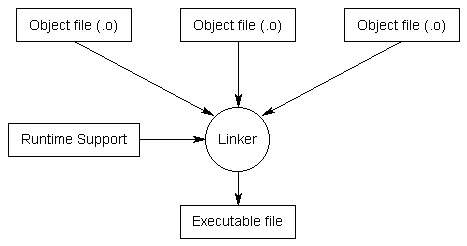
Linking is the process of taking all the object files for a program and combining them into a single executable.
The linking process
In addition to the object files for a program, the linker includes files from the runtime support library. The C++ language itself is fairly small and simple. However, it comes with a large library of optional components that may be utilized by your program, and these components live in the runtime support library. For example, if you wanted to output something to the screen, your program would include a special command to tell the compiler that you wanted to use the I/O (input/output) routines from the runtime support library.
Once the linker is finished linking all the object files (assuming all goes well), you will have an executable file.
Again, for illustrative purposes, to link the .o files we created above on a Linux or OS X machine, we can again use g++:
g++ -o prog file1.o file2.o file3.o
The -o tells g++ that we want an executable file named “prog” that is built from file1.o, file2.o, and file3.o
The compile and link steps can be combined together if desired:
g++ -o prog file1.cpp file2.cpp file3.cpp
Which will combine the compile and link steps together and directly produce an executable file named “prog”.
Step 6: Testing and Debugging
This is the fun part (hopefully)! You are able to run your executable and see whether it produces the output you were expecting. If not, then it’s time for some debugging. We will discuss debugging in more detail soon.
Note that steps 3, 4, 5, and 6 all involve software. While you can use separate programs for each of these functions, a software package known as an integrated development environment (IDE) bundles and integrates all of these features together. With a typical IDE, you get a code editor that does line numbering and syntax highlighting. The IDE will automatically generate the parameters necessary to compile and link your program into an executable, even if it includes multiple files. And when you need to debug your program, you can use the integrated debugger. Furthermore, IDE’s typically bundle a number of other helpful editing features, such as integrated help, name completion, a class hierarchy browser, and sometimes a version control system.
We will talk more about installing and using IDEs in the next section.

Increment/Decrement Operators

Incrementing (adding 1 to) and decrementing (subtracting 1 from) a variable are so common that they have their own operators in C. There are actually two version of each operator — a prefix version and a postfix version.
OperatorSymbolFormOperation
Prefix increment++++xIncrement x, then evaluate x
Prefix decrement––––xDecrement x, then evaluate x
Postfix increment++x++Evaluate x, then increment x
Postfix decrement––x––Evaluate x, then decrement x

The prefix increment/decrement operators are very straightforward. The value of x is incremented or decremented, and then x is evaluated. For example:
1
2
int x = 5;
int y = ++x; // x is now equal to 6, and 6 is assigned to y
The postfix increment/decrement operators are a little more tricky. The compiler makes a temporary copy of x, increments x, and then evaluates the temporary copy of x.
1
2
int x = 5;
int y = x++; // x is now equal to 6, and 5 is assigned to y
In the second line of the above example, x is incremented from 5 to 6, but y is assigned the value of the copy of x, which still has the original value of 5.
Here is another example showing the difference between the prefix and postfix versions:
1
2
3
4
5
6
int x = 5, y = 5;
cout << x << " " << y << endl;
cout << ++x << " " << --y << endl; // prefix
cout << x << " " << y << endl;
cout << x++ << " " << y-- << endl; // postfix
cout << x << " " << y << endl;
This produces the output:
5 5
6 4
6 4
6 4
7 3
On the third line, x and y are incremented/decremented before they are evaluated, so their new values are printed by cout. On the fifth line, a temporary copy of the original values (x=6, y=4) is sent to cout, and then the original x and y are incremented. That is why the changes from the postfix operators don’t show up until the next line.